Calendars
How to use Calendars in BookMe
Calendars
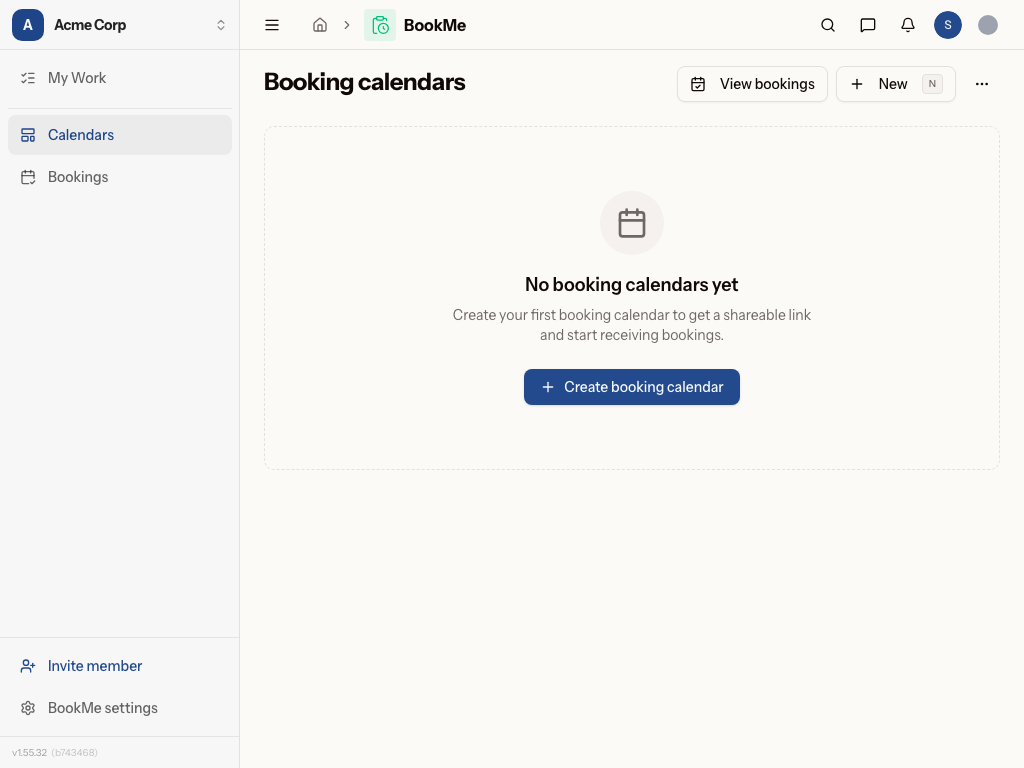
Calendars are the heart of BookMe — each one represents a bookable schedule that people can use to grab time with you or your team. Whether it's a single support slot or a shared team calendar, calendars control your availability, meeting types, and booking rules, so getting them set up right is the key to smooth self-scheduling.
How to set up a calendar
- From the BookMe dashboard, select New calendar or press C. BookMe suggests a default title (like "Book time with [your name]"), which you can rename to fit its purpose.
- Choose a booking page picture: use a website URL for its favicon, your profile avatar, or upload a JPEG, PNG, or WebP picture. Then work through the setup steps to choose the page style, weekly availability, meeting duration, booking limits, capacity, and any questions invitees should answer.
- Choose where the meeting happens: Google Meet, Zoom, phone, or an in-person location.
- Connect Google Calendar or Microsoft Outlook if you want BookMe to check your real-time availability and avoid double-booking. When a Google Meet calendar has one Google account already connected to another booking calendar, BookMe reuses it without asking you to authorize Google again. If you cancel authorization, your setup stays in the wizard so you can retry or finish without linking a host calendar.
- After creating the calendar, copy or open its public booking link and share it with the people who need to schedule time with you. Selecting the calendar's title on the dashboard opens its private bookings ledger.
- Use the calendar's action menu to move it into a folder or open Settings. In Settings, People & access shows who can see, edit, or maintain the calendar.
You can change the booking page picture later under Settings → Appearance. Deleting a calendar from Settings → General returns you to the BookMe calendar list.
Calendar settings
Settings are grouped into pages in the left rail (a row of chips on phones).
Saved together — edits wait in a draft until you save:
- General: title, booking link, description, folder, website, where guests go after booking, the host-calendar status, and Delete this calendar. Changing the booking link breaks links and embeds you already shared, so the page warns you before you save. Deleting happens right away; it is not part of Save.
- Scheduling: meeting length and location, weekly hours, booking rules (time zone, minimum notice, how far ahead guests can book, buffer between meetings, 24-hour times), and capacity.
- Booking form: the questions guests answer.
- Emails: the guest reply-to address and the thank-you email.
- Appearance: the page picture, accent color, and background.
When a page has unsaved changes, a gold dot marks it in the rail and a bar at the bottom lists what changed. Save changes saves only that page; Discard undoes only that page. Your edits on other pages stay in the draft while you move around, and a problem on one page never blocks saving another. If you leave the settings with unsaved changes, BookMe asks first. Connecting Google, Microsoft, or Zoom opens their sign-in page, so BookMe offers to save before connecting.
Saves instantly — changes apply as you make them:
- Calendar sync: connect or disconnect Google or Microsoft. A red dot means the connection needs reconnecting.
- People & access: who can see, edit, or maintain the calendar.
- Embed & share: the public link and its QR code, expiring links for interviews and one-off meetings, and the code to embed the booking page on your website. See Embed & share.
The preview on the right follows the card you are editing. Links to a settings page use its name, such as …/edit#scheduling.
Who can access a calendar
Calendars are private. A new calendar is visible only to you until you share it, and workspace admins get no automatic access.
- Owner: the person the calendar books for. Bookings sync to the owner's connected Google or Microsoft calendar. The owner always maintains the calendar.
- Maintainer: can share the calendar, change access levels, and delete it.
- Editor: can change settings and manage bookings. Editors see who has access but can't change it.
- Viewer: can see the calendar and its bookings.
Open Settings → People & access to add people or teams. A whole-workspace grant can be at most Editor; make specific people or teams maintainers. A calendar always keeps at least one maintainer.
To hand a calendar to someone else, the owner opens People & access, selects Owner on their own row, then Transfer. The new owner must be a workspace member who can manage BookMe calendars. You stay a maintainer. The connected host calendar is disconnected so bookings never land in your account; the new owner connects theirs.
If the owner leaves the workspace, a maintainer can open People & access and select Claim ownership.
If nobody can manage a calendar
Sometimes no one is left who can manage a calendar or folder: for example, its owner left and nobody else maintained it, or its only maintainer was an agent that was revoked. Workspace owners and admins see these under BookMe settings → Calendars without a manager. Select Reassign and choose a new owner from the members who can manage BookMe calendars.
Reassigning gives the admin no access: they can't open the calendar unless they choose themselves as the owner. The former owner loses ownership and any access shared with them directly; access through a team, a folder or the whole workspace is shared and stays. If the calendar syncs with a Google or Microsoft calendar, that connection is removed; bookings sync again once the new owner connects theirs. As soon as someone can manage the calendar, it leaves the list and the usual transfer applies.
Folders
Folders group calendars and share them together. A folder is private like a calendar: the person who creates it owns it and always maintains it.
Share a folder with Share on its page or on the dashboard. Everyone you add gets that access on every calendar in the folder, including calendars added later, on top of each calendar's own sharing; the higher level wins. A calendar's People & access page lists the folder's people as read-only rows "via" the folder, with a Manage folder sharing link if you maintain the folder.
- Moving a calendar into a folder needs maintainer access on the calendar and on the folder. Moving it out needs maintainer access on the calendar, and it then loses the access it had through the folder.
- The folder's owner and maintainers maintain every calendar in the folder, including calendars someone else owns.
- Whole-workspace folder access is capped at Editor, and a folder always keeps at least one maintainer.
- Editors of a folder can rename it; only maintainers can share or delete it. Deleting a folder keeps its calendars (unfiled) but removes the access they had through the folder.
Customize the public booking page
Open a calendar's Settings → Appearance page to choose its accent color and public-page background. Solid colors, gradients, photos, and animated mesh shaders use the same wallpaper library as the knowledge base. The default is a subdued Midnight gradient. A frosted panel keeps booking details and time slots readable over any selected background, and the preview updates as you choose. Select Save changes to publish your selection. On wide screens, the meeting details, date picker, and available times appear side by side. On phones, choose a date, then a time, then enter your details. The progress indicator shows the current step; you can change your selected time before confirming. Times follow the time zone selected below the calendar.
Embedded booking widgets keep their host-page presentation.
The At a glance tile on your profile opens Account → Bookings.
Read calendar status
BookMe shows publication and host-calendar health separately:
- A green Enabled indicator means the public booking page accepts new bookings. A gray Disabled indicator means it does not.
- A green host-calendar indicator shows the connected account email and means busy-time checks and event sync are working.
- An amber No host calendar connected indicator means the booking page still works, but BookMe cannot block conflicts from an external calendar or add events there.
- A red Reconnect indicator means the linked account needs authorization again before busy-time checks and event sync resume.
Open Account → Bookings for a personal list of every calendar you host, including disabled calendars. Each row shows the public booking URL, lets you copy it or open a preview, and identifies the connected Google or Microsoft account when one is available.
In practice
An IT helpdesk lead at a mid-size company creates a calendar called "IT Support Drop-in" and connects it to the helpdesk's Google Calendar. She shares the public link on the internal help site, so staff can self-schedule a 15-minute support session instead of emailing the helpdesk queue. She checks the dashboard weekly to see upcoming volume and confirm the calendar connection is still active.
An IT onboarding coordinator at a growing tech company sets up a dedicated calendar for "New Hire IT Setup & Security Training," moves it into the "Onboarding" folder, and shares it with the onboarding team. New hires book their own session in their first week, and the coordinator uses the folder view to see all onboarding-related calendars and upcoming bookings at a glance.
Tips
- Use folders to organize calendars by team or purpose — it makes the dashboard much easier to scan as your calendar count grows.
- Double-check the connected account's email after linking a calendar, so you know exactly which account BookMe checks for conflicts.
- Revisit read-only calendars occasionally — they're a good sign someone else owns the schedule, so changes should go through them.
Customize an animated background
In Appearance, choose an animated background, then adjust its colors, motion speed, grain, distortion, scale, position, and color intensity. The preview uses the same renderer as your public page. Click Save changes to keep the settings; Reset preset restores the selected preset. Visitors who prefer reduced motion or whose browsers cannot animate the background see a still gradient.
To use your website's colors, enter its address in Get colors from URL, click Get colors, then Apply colors. Colors come from the site's favicon; you can adjust them before saving. The booking panel is vertically centered on larger screens when space permits, and remains easy to scroll on phones and short screens.
Visitors can choose Light, Dark, or System with the theme control on the public booking page. System follows their device preference. The choice affects their view of the shader and booking panel without changing your saved calendar colors.
Choose your booking alerts
Use the bell beside a calendar on the BookMe dashboard or inside a folder. You can also set alerts for calendars you own from Account → Bookings. These settings apply only to you and persist across all three views.
- Watching (default): email and in-app alerts for new bookings, reschedules, and cancellations.
- Tracking: the same alerts in-app only.
- Normal: email and in-app alerts for reschedules and cancellations only.
- Muted: no booking alerts for that calendar.
Your global and workspace email preferences still apply, including Never and Only when away. Bookings remain visible, and guest confirmation emails are unchanged. Anyone with calendar viewing access can set their own preference. The owner coordinates the calendar and follows the same notification settings as other members.
Was this page helpful?