Entries
How to use Entries in Changelog
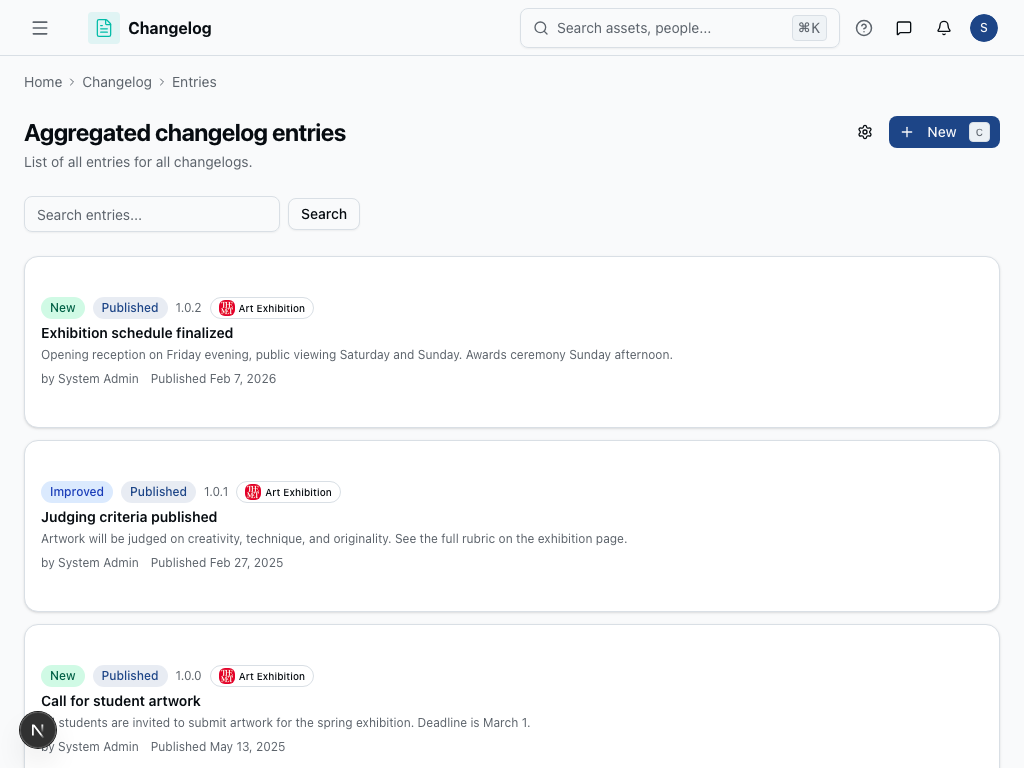
Entries
Entries are the individual updates that make up your changelog — new features, bug fixes, maintenance notices, or policy changes. This is where you draft, organize, and publish the news your audience actually sees, whether that's customers, employees, or both.
How to create and publish an entry
- Go to Changelog > Entries in your workspace.
- Select a topic from the list (or use the default) to control where the entry appears and who can see it.
- Click New Entry (or press the keyboard shortcut shown in the hint bar).
- Fill in the title, content, category (e.g. feature, fix, improvement), and an optional version number.
- Save your entry as a draft to keep working on it, or review it and click Publish when it's ready to go live.
- Use the search bar and filters (category, status, topic) to find existing entries as your changelog grows.
- Sort entries by date or other fields to review recent activity.
- Click the edit icon to revise a draft or published entry, or the delete icon to remove one you no longer need.
- Check the subscriber count at the top to see how many people will be notified for the selected topic.
In practice
Priya, a product manager at a software company, batches up the week's shipped features into draft entries as engineering finishes them. On Thursday afternoon, she reviews each draft, tags them with the right category (Feature, Fix, Improvement), and publishes them together as that week's release notes. Customers subscribed to the "Product Updates" topic get notified immediately, and Priya can see the subscriber count grow release over release.
Devon, an IT service desk lead at an enterprise, uses a dedicated "Maintenance & Outages" topic to post planned downtime notices. He drafts the entry a few days ahead with the affected systems and time window, then publishes it the morning of the maintenance window so it reaches everyone subscribed company-wide.
Tips
- Keep drafts in draft status until you're fully ready — nothing is announced to subscribers until you hit Publish.
- Use topics to separate audiences (e.g. public customer updates vs. internal-only IT notices) so the right people see the right entries.
- Filter by status and category regularly to catch stale drafts before they're forgotten.
Was this page helpful?