Scheduled
How to use Scheduled in Stackr Project
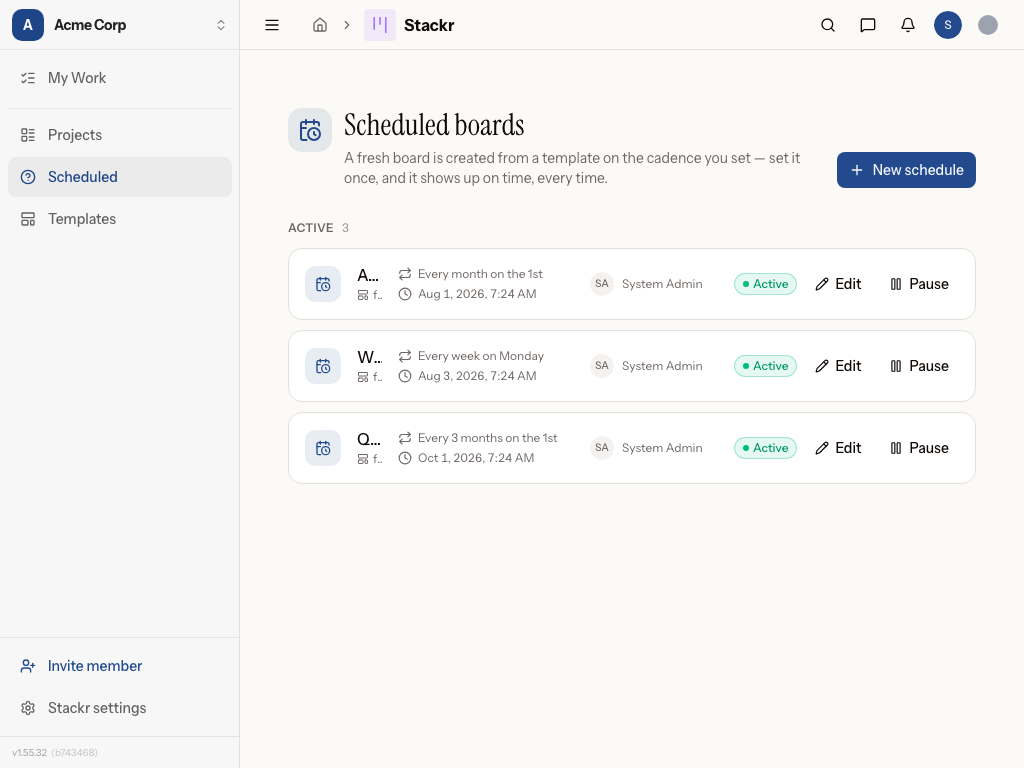
Scheduled boards
The Scheduled page lets Stackr Project create a whole new project board for you on a cadence — for recurring processes like a monthly maintenance cycle or a per-semester inspection round. Set the schedule once and Stackr Project builds the board on time, every time.
Looking to repeat a single card instead of a whole board? Card schedules live on the board that owns them — open the board and switch to its Scheduled view (see "Recurring cards live on their board" below).
How to set up a scheduled board
- Go to the Scheduled tab in Stackr Project.
- Click New board schedule.
- Choose the template you want to use as the source board.
- Decide whether to copy the template's existing cards into each new board, or start with an empty board each time.
- Set the recurrence pattern (for example, weekly, monthly, or on a custom schedule) using the recurrence picker.
- Assign a project manager for the boards this schedule creates. They must be an active workspace member with Stackr Member or Admin access. If the person isn't already a template manager, grant them template access directly from the dialog. Without an explicit Run as choice, they automatically become a Maintainer of each new project. With Run as, choose the new project's sharing and ensure an eligible human Maintainer as described below.
- Give the schedule a name so you can identify it later, then save it.
Recurring cards live on their board
A card schedule creates a fresh copy of a single card on the board you already run — for repeating tasks like a weekly report. Because it belongs to that board, you manage it from the board itself, not this workspace-wide page:
- Open the board and select the Scheduled view from the view switcher (the calendar icon). A small dot appears on that icon when one of the board's card schedules needs attention.
- Click New card schedule to define a card that will first appear when the schedule runs. You can also open Repeat… from an existing card’s ⋯ menu, or set a cadence in the new-card dialog.
- Use the Schedule section to set the first run, recurrence, and end conditions. Times display in your local timezone automatically. Enable Only one open at a time to skip runs while a previous card is still open.
- Use the Card section to edit its title, rich description, destination list, assignee, tags, start and due dates, and checklists. Start dates default to card creation, or choose a number of days after creation. Set the due date to the same day as the start, a number of days after it, or leave it unset. Specific first-run dates remain available and shift with later runs. Save to apply the template to future copies; checklists start unchecked.
The board's Scheduled view lists each card schedule's cadence, next run, run count, and owner, split into Active and Paused. A schedule that stops because something it needs is gone (for example, the owner lost access) is flagged Needs attention with the reason, so you can fix it and resume.
Duplicate a scheduled card
To use an existing scheduled card as a starting point, open its board's Scheduled view and click the Duplicate schedule icon beside the schedule. The editor opens with a "(copy)" title and the saved card content and timing. Change the name, first run, checklist items, notes, links, or any other details, then click Create schedule.
For example, duplicate October Reports, rename it November Reports, adjust the first run, and update the checklists and statute references for November. The original schedule stays unchanged. Cancel closes the draft without creating anything.
The duplicate starts as a new active schedule with its own run count, even if the source was paused or complete. Check its first-run date and end conditions before saving. It retains the assignee, tags, date rules, description, checklist settings, and linked references. Embedded description files get their own copies. Ordinary schedules warn if a failed copy leaves a reference to the original; schedules with Run as require their saved files and refuse the copy if a required file cannot be prepared.
Run a schedule now
Any active schedule can be run right away, outside its cadence: click the lightning (Run now) icon beside it, on the Scheduled page for board schedules or in a board's Scheduled view for card schedules. A confirmation dialog creates the board or card immediately through the same path a scheduled run uses, so it counts in the run history and in the run count.
The dialog offers Skip the next scheduled run. Leave it off and the schedule keeps its next occurrence, which is useful when you need an extra copy. Turn it on when the manual run replaces the upcoming one: the occurrence shown in the dialog is recorded as skipped in the run history and the schedule moves on to the one after it. Skipping the final occurrence of a limited series completes the series. If the schedule changed while the dialog was open, or that occurrence has already run, Stackr tells you instead of silently skipping a different one.
A paused schedule must be resumed first, and only one run of a schedule executes at a time. When a card is created on the board you have open, it appears there as soon as the run finishes.
Limiting how many times a schedule runs
Any repeating schedule can end after a fixed number of runs: in the Ends field, choose After a number of runs and set the count. The schedule pauses itself as "Series complete" after the final run. Choose Never for an open-ended series, or set an end date from the Custom recurrence dialog. On a card schedule, the run column shows progress toward that cap (for example, "3 / 12").
Managing board schedules
- The list shows each schedule's cadence, next run, and owner, split into Active and Paused.
- Use the pause/resume button to stop or restart a schedule without losing its settings.
- For schedules without an explicit Run as choice, Stackr checks before each run that the owner can still access the template and that both the owner and assigned project manager are active workspace members with Stackr Member or Admin access. If a check fails, the schedule pauses with a reason and creates no project. Restore the required access or update the manager, then resume. With Run as, the selected executor's current authority governs recovery instead.
- Use the pencil to edit a schedule, and the trash icon to delete one — boards it already created stay where they are.
- Archiving a board pauses its schedules (resume them after unarchiving the board). Ordinary schedules skip runs while the board is in the trash; those skipped slots count toward a series limit. Schedules with Run as retain owed runs at their original due times, as described below.
Run as a position and keep original due work
When enabled, Run as can select a person or a position. This executor controls whether a recurring project or card may be created. It is separate from the assignee saved on each card or checklist item. Give the position the source permissions and resource access it needs. For a new private project, choose its destination folder or explicitly share the new project with the selected executor as maintainer. Editing a schedule shows whether that sharing is enabled. Turning it off removes the selected executor's maintainer grant from future projects; other saved sharing remains. Changing the executor keeps the previous executor's saved grant and lets you choose whether to share with the new person or position. Required human maintenance access must remain available.
A new card schedule initially shows you as its Run as person. Existing and duplicated card schedules retain their saved executor, or their original owner when no executor has been chosen. You can select another person or position; the executor cannot be cleared to Unassigned.
If the position is vacant or loses a required permission, the run stays owed at its original due time. Repair the acting owner or the position's grants to resume recovery. Missing authority does not silently discard an overdue run. Scheduled projects retain their wallpaper and files embedded in column help. File recovery rechecks the saved executor’s current access before publishing. Changing the future template, pausing or removing a schedule keeps the earlier original-due work and its original definition. Reopening an editor preserves the saved Run as position and its sharing plan, including paused schedules.
Open the schedule's Original due work section to inspect queued or blocked runs. A source manager with current resource access may cancel or skip an owed run with a reason. For a removed schedule, open Settings → Positions, select the position and use Original due work. Those owed runs remain accessible even when the schedule never published its first card or project. Details and additional pages appear only to people authorized for that source.
An uncertain result offers Retry the same request. Keep the original choice and reason while confirming the outcome. A recovered run records its original due time and actual creation time; it does not claim the replacement manually created or performed the work.
For schedules with Run as, recovery keeps start-date offsets relative to the original planned day. Due-date offsets are counted from that card's start date. A delayed recovery can therefore create an already-overdue card instead of moving its promised dates forward.
In practice
Priya, an IT manager at a mid-size company runs a recurring laptop refresh and onboarding/offboarding process. She builds a template board with columns for procurement, imaging, and deployment, then sets up a monthly schedule that copies the template's checklist cards into a new board on the first of each month. She assigns herself as project manager, so every new cycle lands in her queue automatically without her having to rebuild the board from scratch.
Marcus, a facilities manager at a K-12 school district oversees recurring maintenance across several buildings. He creates a template board per building with routine inspection and repair tasks, then schedules it to regenerate every semester. He assigns each building's site lead as project manager, so maintenance boards appear right on schedule with the correct owner already in place.
Dana, an operations lead, submits a weekly ops report every Friday. On her board she opens the report card's ⋯ menu, chooses Repeat…, and sets it to weekly with her prep checklist attached. A fresh, unchecked copy shows up in her "To do" list each week — and when the quarter's 13 reports are done, she caps the schedule at 13 runs so it wraps itself up. She keeps an eye on the board's Scheduled view to confirm every copy landed.
Tips
- Keep your source templates clean and up to date — every scheduled board inherits directly from the template, so outdated cards will keep reappearing.
- The pencil opens separate Schedule and Card sections for every card schedule. Edit the saved template here to change future copies. Changes to the original card do not overwrite this template, and editing the schedule does not modify cards already created.
- Use pause instead of delete when a process is on hold; you'll keep your recurrence settings for when you're ready to resume.
- Watch the Scheduled view's icon on a board — a dot means one of its card schedules needs attention and stopped running.
Was this page helpful?