Templates
How to use Templates in Stackr Project
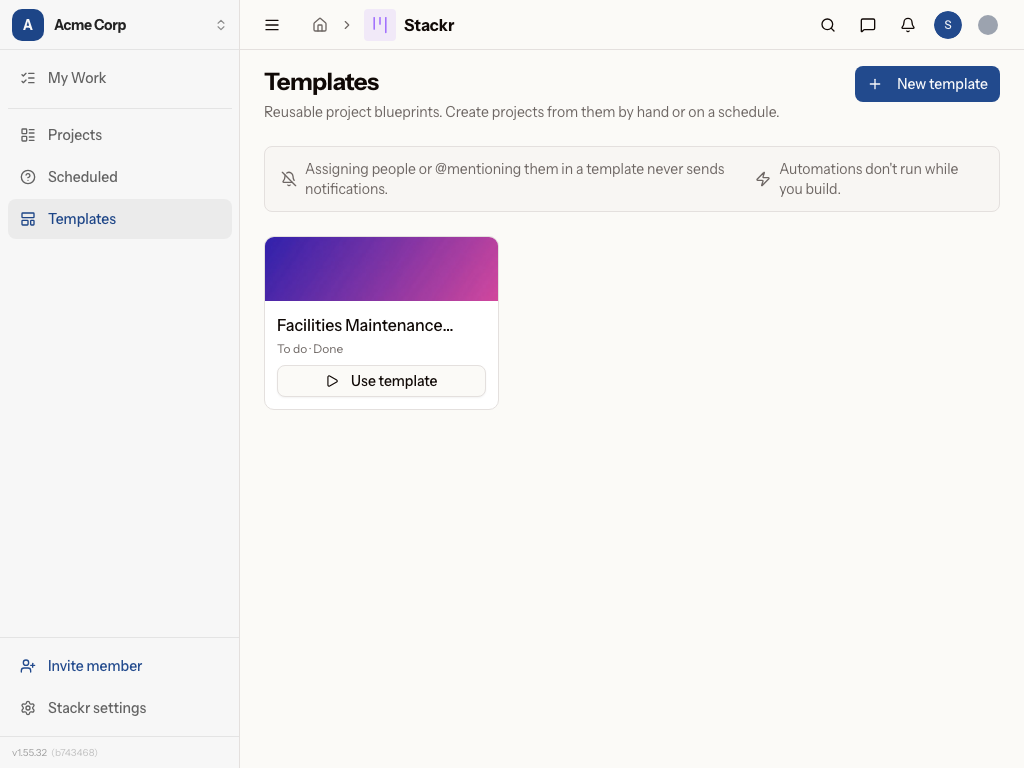
Templates
Templates let you save a board's structure — its lists, layout, and background — so you can spin up new projects without rebuilding them from scratch every time. If you run the same kind of project repeatedly (onboarding a new hire, servicing a building, launching a campaign), a template turns that setup work into a single click.
Templates open in building mode: no one gets notified by assignments, mentions, or comments, and automations won't fire while you're editing the structure. You can safely tinker without pinging your whole team.
The Templates page and project creator show only templates you can access. If a teammate's template is missing, ask its maintainer to share it with you; once it appears in the picker, you can open and use it.
How to create and use a template
- Go to Stackr > Templates in your workspace.
- Click New Template, give it a name, and choose a starting layout (or start Blank).
- You'll land on the template board in building mode — add, rename, and reorder lists just like a normal project, and set a background if you'd like one.
- When you're ready to spin up a real project from it, click Use Template (or find it from the card's menu) on the templates list.
- Enter a name for the new project — Metadot suggests a name stamped with the date, so repeat runs stay easy to tell apart — and confirm.
- Your new project is created with all the template's lists in place, fully live (assignments and automations work normally from here on).
- Need to tweak an existing template? Open it from the list, or use the card's menu to rename or delete it.
In practice
Templates with position-owned work
With position assignments enabled, cards and checklist items in a saved template can stay assigned to jobs such as IT manager. A project made from that template preserves those logical targets and displays each job's current acting owner. A handover changes who picks up unfinished work without editing every template or copied item. Previous completion and performer history stays truthful.
When using a saved template, Copy template sharing is an explicit choice. Choose a destination folder or the sharing needed for the new project; it must have a human maintainer. The acting person and copy creator receive no automatic personal grants for position-owned work. The complete project, its work and required files are created together. If required access or a file is unavailable, correct the issue and retry before expecting a new project.
A recurring template also has a separate Run as executor and initial sharing choices in Scheduled. The executor permits creation; each copied card or checklist item still keeps its own assignee. Changing a position's acting owner updates future execution through that position's grants.
An IT manager running quarterly laptop refresh rollouts builds one template with lists like Awaiting Approval, Ordered, Imaging, Ready for Pickup, and Retired Device Wiped. Each quarter, instead of rebuilding the board, they click Use Template, name it "Q3 Laptop Refresh," and have the full workflow ready in seconds — with the right lists already in place for the new batch of employees.
A facilities manager at a school district sets up a "Building Maintenance" template with lists per task stage (Reported, Scheduled, In Progress, Inspected, Closed). Every time a new building needs a maintenance cycle, they use the template to create a fresh project, keeping every building's history separate but consistently structured.
Tips
- Use Blank if you just want a clean slate with your own lists — no need to force-fit a preset layout.
- Rename templates clearly (e.g., "Onboarding — Engineering") if you keep several similar ones, so they're easy to tell apart later.
- Since building mode suppresses notifications, it's a safe place to reorganize a template mid-quarter without alerting anyone.
- Move to trash on a template hides it without deleting it. A Maintainer can restore it from the Trash section on the Projects page; projects already created from it are not affected.
Was this page helpful?