Projects
How to use Projects in Stackr Project
Working with Projects
Projects are where the work happens in Stackr. Each Project acts as a board for organizing tasks, tracking progress, and keeping your team aligned on a specific goal — whether that's a one-time rollout or a recurring operational cycle. Instead of scattering updates across email and spreadsheets, a Project gives you one place to see status, ownership, and deadlines at a glance.
Setting up and running a Project
- Create a new Project — Click New Project from your workspace dashboard and give it a clear name (e.g., "Laptop Refresh — Q3").
- Choose a template or start blank — Pick a starter template if one fits your workflow, or build your board from scratch with custom columns (like To Do, In Progress, Blocked, Done).
- Add tasks — Create cards for each task, assign an owner, and set a due date.
- Organize with columns or stages — Group tasks by status, location, or phase depending on how you want to track progress.
- Invite collaborators — Add teammates to the Project so they can update their own tasks and see the full picture.
- Track progress — Move cards across the board as work advances, and use filters to check what's overdue or assigned to a specific person.
- Close out or repeat — Archive the Project when it's complete, or duplicate it as a template for the next cycle.
The new-project form selects you as Project manager and defaults Start date to today in your local time zone. You can change either field. Description starts as one line and expands when you click or type; prefilled descriptions stay visible.
Browse projects by folder
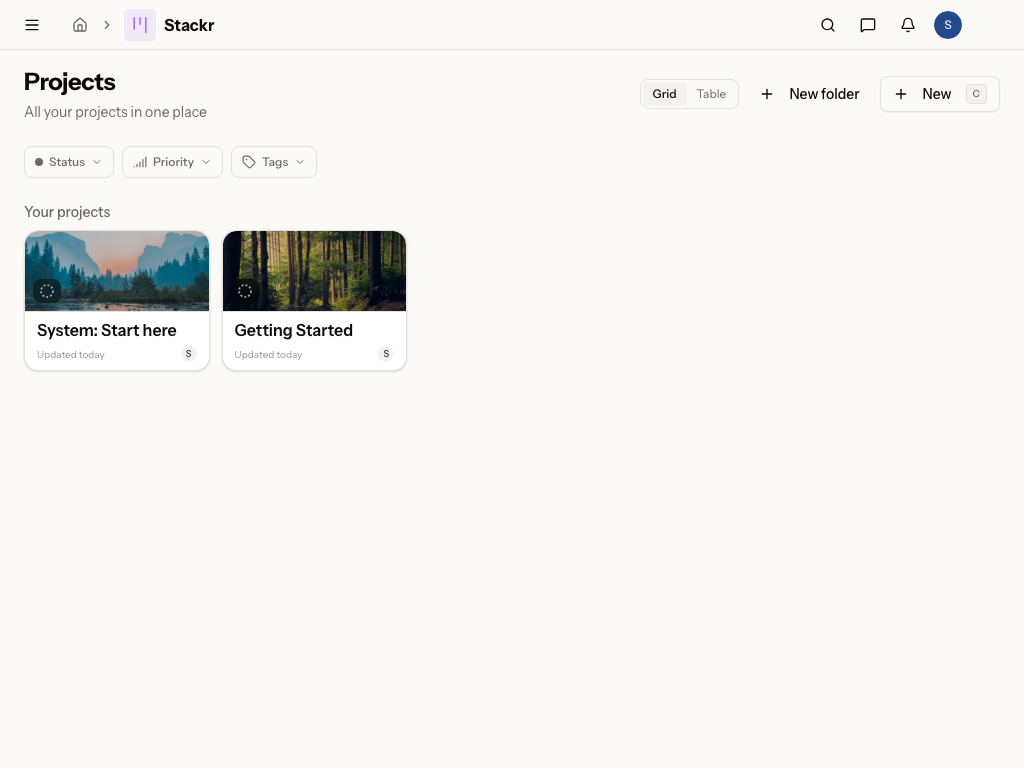
The Projects page shows projects in the root folder. Select a folder in the left navigation, then Boards, to show only that folder's projects; select Projects to return to the root. On a phone, open More to choose a folder.
The root's grid, table, timeline, Favorites, and exports all use the same folder scope. Status, priority, and tag filters narrow the current list. Projects shared directly with you still appear in the root when you cannot access their parent folder. Archived projects and Trash remain available below the root list for recovery.
Recently viewed appears above the heading on both the Projects page and folder pages. It shows five accessible recent projects across folders, in every view and on phones. The current list filters do not hide these navigation shortcuts. On desktop, press the number shown on a project to open it.
Choose + beside Folders in the left navigation (or phone More sheet), enter a name, and select Create folder to open your new folder immediately. Folder member avatars appear below its heading and open the Members page.
Each folder has three navigation items:
- Boards shows the folder's projects.
- Members lists the people and teams with access, with role filters and search. Folder maintainers can use Share to add members or manage their access.
- Settings contains the folder name and Move to trash action. Editors who can manage projects can rename the folder. Maintainers with the same Stackr permission can move it to Trash after reviewing the confirmation. The action is also available under Folder actions on its Boards page.
Moving a folder to Trash moves its projects with it. People who only had folder access lose that access. Use the toast's Undo, or open Trash from the user menu, to restore the folder and its projects, back inside the folder. A project in a trashed folder is restored with the folder, not on its own. Delete forever on the folder erases its projects too. A folder name stays reserved while the folder is in Trash.
Click the folder name to open its projects and unfold these items. The chevron collapses or expands them. Navigation shortcut keycaps appear over a row on hover or keyboard focus, leaving more room for long names. The Recently viewed heading appears when you hover or focus within that section; its project links stay visible.
Projects on a phone
On a phone, projects appear as compact rows with a background thumbnail, name, status, open-card count, and a due-soon or overdue hint when applicable. Starred projects appear first, followed by recently opened projects, without repeating projects in the list. Use Project options beside a row to star a project or open the actions available to you. Archived projects have an expandable section below the active projects. Choose folders through More.
Status, priority, and tag filters still apply. When no projects match, choose Clear filters to return to the full list. Desktop keeps the grid, table, and timeline views.
Card participants and notifications
Open a card and use Participants, below its description, to add teammates. Participants appear as clickable avatars on the board and in the drawer. +N opens the full roster when there are more people than fit. Click an avatar to view the person's profile or remove them from the card. Removing a participant keeps their project access.
Use + in the drawer to search card participants, project members and workspace members. Workspace members (no access yet) identifies people who cannot yet open the hosting project. Editors can add people who already have access. Maintainers can also add a workspace member after choosing a project role: Viewer (view only), Editor (edit cards), or Maintainer (edit and manage access). No role is preselected, and Add stays disabled until you choose one. The selected role applies to the entire hosting project, including its cards, discussions and files.
The first addition sets the person's notification level to Watching, unless that person already chose a level. Each person controls their own setting using the notification menu at the top of the drawer:
- Watching: card updates and comments in the inbox, plus eligible email.
- Tracking: card updates and comments in the inbox, without email.
- Normal: direct notifications for assignments, mentions and replies.
- Muted: no card notifications, including assignments and mentions.
Changing this setting keeps the person in Participants. Global email preferences still apply. A person's existing choice survives removal and re-addition. Removing someone who never changed the automatic Watching setting returns them to Normal. Readers can leave a card or change their own setting, including on archived projects. Participant management requires an editable project.
People with card access can see each participant's actual notification level in
the participant picker and avatar details. Each participant controls their own
level. The ? beside Participants explains card activity notifications and the
@participants audience mention.
Mirror cards share the same participants and personal choices. Notifications link each person to a project they can access. Public cards, exports and copied cards do not include the participant roster or notification levels.
Mentions, card references and editor commands
Type a prefix and choose an autocomplete suggestion to insert it. In a card comment, the (@) button to the right of Cancel opens a reminder:
@someonementions a selected person.@participantsmentions the current participants of that card. Mirror cards share the canonical card's participants; recipients still need project access.@allmentions members with access to the hosting project. The existing@everyonespelling has the same meaning and remains supported.#followed by a card number or slug searches accessible cards and inserts a link. A card reference is separate from the colored labels applied to cards./opens the editor's formatting commands.
Participant mentions are available in card descriptions, checklist notes and
comments, including replies. Project discussion topics offer @all and
@everyone; they have no card participant audience. A pasted @participants
mention is ignored in project discussion topics and replies. Authors do not notify
themselves, overlapping mentions produce one notification, and personal/global
notification settings still apply. Muted suppresses even direct mentions.
Paste a list into a card checklist
Open a card, add or open a checklist, and choose Add an item. Paste a bulleted, numbered, dashed, or multiline list into What needs to be done?. Stackr opens a preview with one checklist item per line or bullet, removes list markers, and skips blank lines.
Review the full list and click Accept to create the items in order. Your selected assignee and due date apply to every item. Cancel closes the preview without creating items or changing your existing draft. Ordinary single-line text pastes normally. Each item can contain up to 255 characters; longer items are highlighted so you can cancel, shorten them, and paste again.
Project managers and access
Assign cards and checklist items to a position
When position assignments are enabled, an assignee picker offers People and Positions. Choose a position such as IT manager to keep responsibility with that job. The assignment shows the position and its current acting owner separately. Unstaffed positions show Needs acting owner; a position missing required access shows Needs permissions.
A settings manager gives the position its app permissions and access to the project, then chooses its acting owner under Settings → Positions. Changing Bob to Alice carries unfinished cards and checklist items, together with the position's grants, to Alice. Alice does not need personal project grants. Helpers and AI agents listed on the position do not inherit that access. A person can act for several positions.
Completed work keeps the owner and person who performed it at completion. Reopening the work follows the position's current acting owner. Changing a title or due date preserves the saved position target; choose a person or Unassigned only when you intend to change that responsibility.
Native project/card copies and conversions keep position targets with the copied work. Select the destination folder or explicitly copy the source's sharing when offered. The destination must retain a human maintainer. A missing grant or unavailable required file refuses the copy without leaving a partial project. A position's acting owner is never automatically given personal sharing by these copies.
Assignment notices follow the position's eligible current owner. A handover while a notice is waiting for delivery or retry sends it to the successor using current project access and notification preferences. Previously delivered notices remain historical. Copied cards record their creation and assignment notice once.
Appointing a project manager makes them a Maintainer, who can add, rename, reorder, archive and restore columns. The manager must have Stackr Member or Admin access. Editors can work on cards; Viewers can read. Archived projects need to be restored before changing their content.
Duplicating a project assigns the copy creator as manager. Separate sharing and folder access follow the copy options.
Moving a project to the trash
A project's Maintainers can move it to the trash from its card on the Projects page, from the project's own menu, or from Archive & trash in its settings. You do not need to archive it first.
A project in the trash is hidden from everyone, with its lists, cards, files and sharing. Its cards no longer show in search, in My tasks, or on other projects that mirror them, and its recurring schedules create nothing while it is there. Nothing is deleted.
To bring it back, a Maintainer opens the Trash section at the bottom of the Projects page and clicks Restore (or clicks Undo on the message shown right after moving it). The project comes back with its lists, cards, files and sharing; a project that was archived before stays archived, and its schedules pick up with their next run. A card mirrored onto it from another project can be lost if that card is deleted while it is in the trash. A Maintainer who opens a link to a trashed project is told where it went and can restore it from there; for anyone else the link shows the usual not-found page.
In practice
Maria, an IT manager at a mid-size company, uses a Project board to run her quarterly laptop refresh and onboarding/offboarding rollout. She sets up columns for "Devices Ordered," "Configured," "Shipped," and "Delivered," assigns each device to a technician, and tracks due dates against employee start dates. When leadership asks for a status update, she just opens the board instead of chasing down emails.
Tom, a Facilities manager at a K-12 school district, duplicates a "Building Maintenance" Project every month across all five school locations. Each Project tracks HVAC checks, lighting repairs, and safety inspections by building, so he can see at a glance which sites are on schedule and which need follow-up before the next walkthrough.
Tips
- To show the same card in another project, choose Mirror from the card’s right-click menu or its ⋯ menu, then select a destination project and column. You need viewer access to the original project and editor access to the destination. The card’s content is shared with destination collaborators, and edits appear in both places.
- Use consistent naming conventions across Projects so recurring work is easy to find and compare over time.
- Duplicate a finished Project as a template if you run the same workflow regularly — it saves setup time and keeps structure consistent.
- Set due dates on every task, even rough ones — it makes filtering for overdue work far more useful.
- Copy a card description as Markdown from its description actions. While editing, use More editor actions to copy or paste Markdown without losing lists, links, or other formatting.
- Link a related card from a description or comment by typing # and searching its number, title, or slug. Select a suggestion with the keyboard or mouse, just as with @ mentions.
Project backgrounds
Open the project menu and choose Change background to select a solid color, gradient, photo, uploaded image, or animated mesh. Animated backgrounds include controls for colors, motion, grain, distortion, scale, position, and intensity. Changes preview live; Save keeps your settings and Cancel restores the previous background. Reset preset restores the selected mesh's defaults. A still gradient is shown when reduced motion is enabled or animation is unavailable.
Use Get colors from URL in Customize shader to extract a palette from your website's favicon. Review the colors, choose Apply colors, then Save.
Choose Light, Dark, or System in your account menu to change your view. System follows your device preference. Shader colors and intensity stay saved with the project; the viewing theme changes the backdrop base and content surfaces. Blurred, tinted columns keep headings readable over bright backgrounds.
Reviewing project activity
Board editors and maintainers can open Activity, including on archived boards. Board viewers do not have access to this view.
Choose Activity in the project view switcher or project menu to open the project's history. It has its own page, so you can bookmark or share a filtered view with teammates who have access to the project.
Use All people to select a person and All activity to select an activity category. Clear resets both filters; Load more reveals older entries. Each entry shows who acted, what changed, and when. Hover over its relative time for the full date and time.
Checklist changes name the affected item, task edits describe the fields that changed, and the feed also includes project/list changes, sharing, documents, files, and schedule changes. Deleted cards and lists retain their recorded history. Older entries may have less detail if it was not recorded at the time. Pulse continues to offer a compact summary of card activity.
Folders, views, and copying
Click a folder name to open its boards and unfold the Boards, Members, and Settings links. Its chevron also expands or collapses these links. Members and Settings deep links expand their folder unless you have explicitly collapsed it. Use the + beside Folders to create a folder; on phones, find the same control in More. Creation requires the relevant Stackr permission.
Project lists and folders have Grid, Table, and Timeline controls. Use Shift+G, Shift+L, and Shift+T to switch views. Table sorting also controls the export order. On phones, projects use compact rows regardless of the saved desktop view.
Click Copy to choose Markdown, Slack text, CSV, or the current page link. Project exports follow the visible filters and order. If the clipboard is unavailable, a dialog selects the text for manual copying.
Moving a project while keeping its people
A project maintainer can use Move to folder in the project menu, or drag a project tile or Favorite to an eligible sidebar folder. The destination requires editor access. Favorites can still be reordered within their section.
Review the preview before confirming. All currently eligible project members retain their access and roles, including people who inherited access from the old folder. Destination members may gain access or a stronger role. Current app permissions and account restrictions continue to apply. If placement or access changes while you review, the dialog refreshes the preview and requires a new confirmation. Restore archived projects before moving them.
Opening a newly created card
After creating a card, click View in its confirmation toast. The card opens with its friendly numbered address through client navigation; on the same board it uses the card drawer and preserves the current board state. Existing unsaved-edit guards still apply.
Was this page helpful?